How to use the Airfoil tool
Design an airfoil in your browser, free and without signing in. The whole section is one smooth curve, a NURBS curve, and you shape it by moving its control points. You read its thickness, camber and curvature as you go, compare it with others, and download it.
What you design stays in your browser: the tool keeps your last design and brings it back on your next visit, on the same computer and browser. Nothing is sent anywhere unless you download a file or copy a link.
1. The Concept
Shaper.xyz models an airfoil as one single smooth curve. It starts at the trailing edge on the lower surface, runs around the nose, and ends at the trailing edge on the upper surface, with no break at the leading edge. Because it is one curve, its slope and its curvature flow without jumps, and that is what the air feels.
Control points: you shape the curve, not the points on it
The curve uses NURBS math. You do not move points that lie on the curve; you move control points around it, and the curve follows them smoothly, like a flexible batten pulled toward each control point. A dozen control points describe an airfoil that a coordinate file needs a hundred or more points for, and moving one control point changes the shape only near it. You choose how many control points to use.
Why NURBS
- It is the common language of CAD: the same curve can go straight into a wing, a sail or a mould, so what you design is what gets built.
- Its curvature is exact, so the curvature plot shows the true shape, including bumps the eye cannot see.
- Fewer points mean fewer chances for wiggles.
Fitting the classic airfoils
Most airfoils in the Library come from coordinate files, many of them from the UIUC Airfoil Coordinates Database. A coordinate file is a list of 2D points. We fit one NURBS curve through each file: within one ten-thousandth of the chord where the data allows, with as few control points as possible, and with the control points kept in order, so the curve can never fold back on itself. The original coordinates are kept, and every fitted airfoil carries the credit of its source.
Reading an airfoil
Thickness and camber tell you what the airfoil is. Curvature tells you how well it is made: a smooth curvature plot means a smooth pressure distribution; a spike or a dip means a bump the air will notice.
A few aerodynamic facts
These are general rules, a starting point, not numbers for a design.
- Leading-edge radius (the tool shows its diameter, LE d): a rounder nose tolerates a wider range of angles of attack and stalls more gently; a sharp nose is efficient and fast near its design angle, but stalls more suddenly.
- Thickness: a thicker section gives more room for structure, and its stiffness grows quickly with thickness, but it adds drag. Most wings live between about 8% and 18% of the chord.
- Camber: camber makes lift even at zero angle of attack. More camber gives more lift; the trade-off is a stronger nose-down pitching moment.
- Reflex: a trailing edge turned slightly up reduces that nose-down moment. Flying wings, paragliders and many kites use it to stay stable on their own, at the cost of some lift.
- Position of maximum thickness: further forward is robust and forgiving; further aft can keep the flow laminar for longer, with lower drag over a narrower range.
- Trailing-edge thickness: thin is best for the air; some thickness is often needed for structure or manufacturing.
2. The canvas
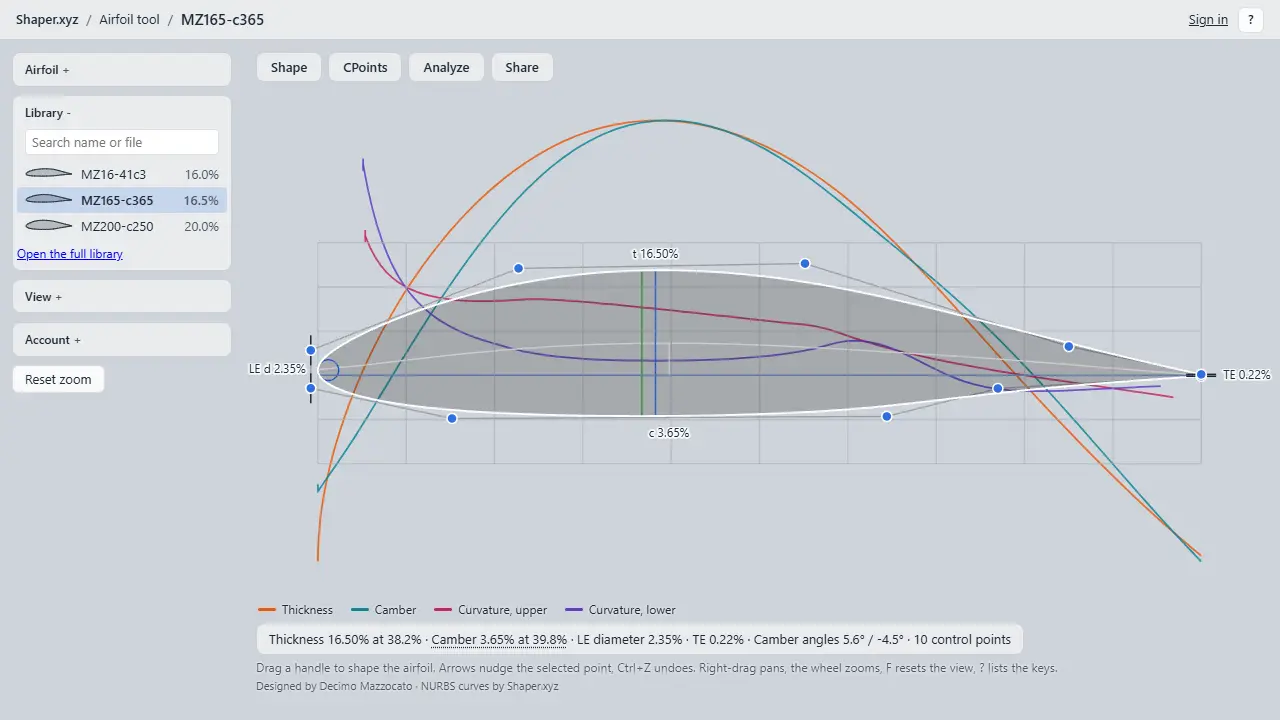
- Handles. Each circle is a control point of the curve. The two points at the nose carry a short vertical tick: they stay one above the other. The two points at the trailing edge carry a horizontal tick: they stay at the end of the chord.
- Drag a handle to shape the airfoil; the numbers under it change as you move. Click a handle to select it, then use the arrow keys to nudge it in small steps.
- The settle. When you let go, the airfoil is set back to the standard frame: the nose at x = 0, the trailing edge at x = 1. You may see it slide slightly into place.
- Undo and redo: Ctrl+Z and Ctrl+Shift+Z. Every drag, every typed value and every load is one step.
- Zoom with the mouse wheel, pan with the right button held down. Reset zoom (or F) brings back the standard view.
- Tab hides every box for a clean canvas; Tab again brings them back.
The tool works best with a mouse and a keyboard. On a phone you can open airfoils and look at them.
3. On the left
Four boxes and a button down the left side; a box opens when you click its name, and one is open at a time.
- Airfoil: the name, ref and origin of the airfoil on the canvas, and its credit. New starts again from a clean 12% section (a NACA 0012 with 10 control points); Fork makes a copy to edit, which keeps the credit of the airfoil it came from. Saving to the library needs an account (coming soon).
- Library: search the library by name or file name; with the field empty it lists the airfoils you opened last in this browser. Click a row to open that airfoil; Open the full library opens the Library page with what you typed.
- View: the grid, the control polygon, the fill, the camber line, the reference lines and the numbers on the airfoil, each on or off; how transparent the boxes are; and Clean canvas, which hides the boxes (Tab).
- Account: whether you are signed in, and the link to sign in. Everything in the tool works without an account.
- Reset zoom: back to the standard zoom, the whole airfoil in view (F).
4. Shape
Shape, CPoints, Analyze and Share open from the row of buttons over the canvas, one at a time (keys 1 to 4); Esc closes the open one. The ? in a box opens its part of this page.
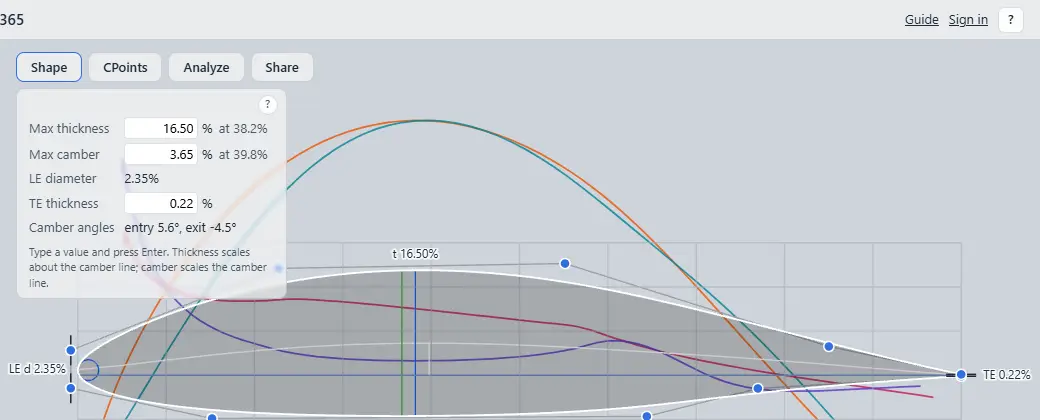
- Type a max thickness, a max camber or a trailing edge thickness in % of the chord and press Enter. Thickness is scaled about the camber line; camber scales the camber line.
- Beside each one, where along the chord it is.
- LE diameter: the diameter of the circle that fits the nose.
- Camber angles: the angle of the camber line at the nose (entry) and at the trailing edge (exit), against the chord.
5. CPoints
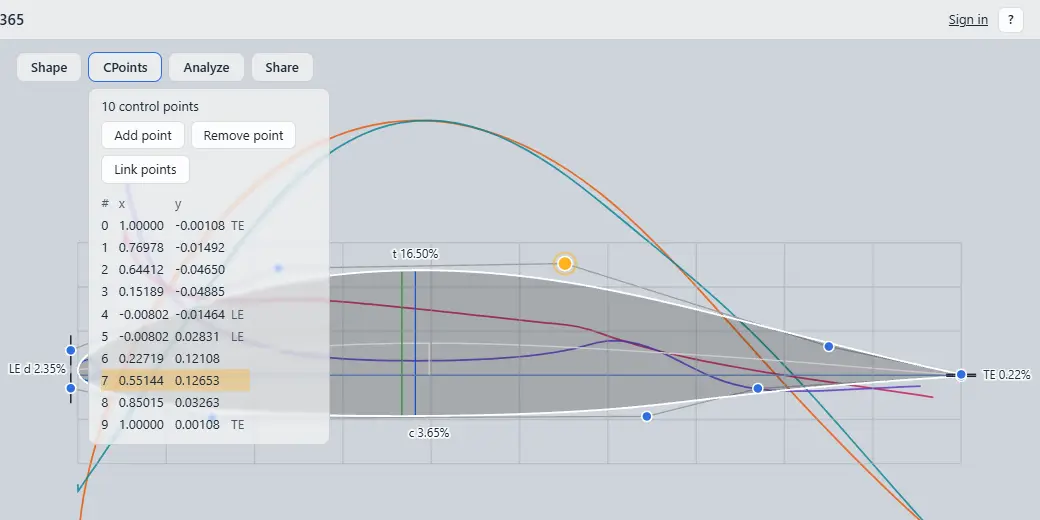
- Add point puts a new control point after the selected one; the shape stays the same.
- Remove point removes the selected one and fits the curve again around it. The nose and trailing-edge points stay, and an airfoil keeps at least 7 points.
- Link points, then click two points: from then on they move together up and down. The box folds away while you click, so every point can be reached. When a linked point is selected the button reads Unlink; the point table has an Unlink button on each linked row too.
- The point table lists every control point with its x and y; click a row to select that point.
6. Analyze
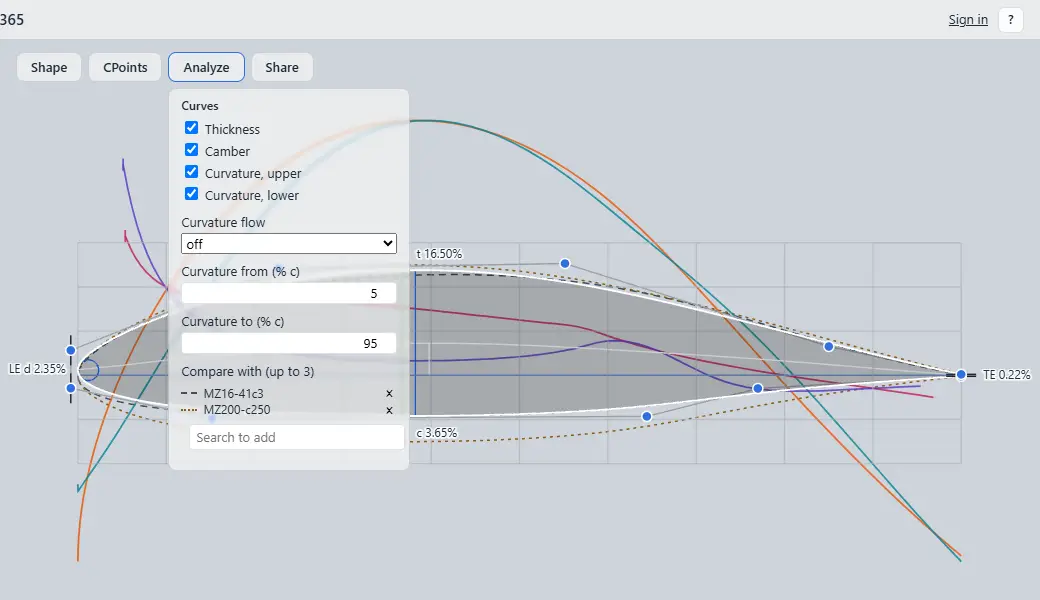
- The curves: thickness, camber, and the curvature of the upper and lower surfaces, drawn over the airfoil along its chord. Click a name in the legend under the canvas to hide or show that curve.
- Curvature flow draws the curvature as small combs along the surface (C cycles it); Curvature from and to set the part of the chord the curvature scale is fitted to.
- Compare with: search for up to 3 other airfoils; each is drawn dashed in its own colour, and its × removes it.
7. Share
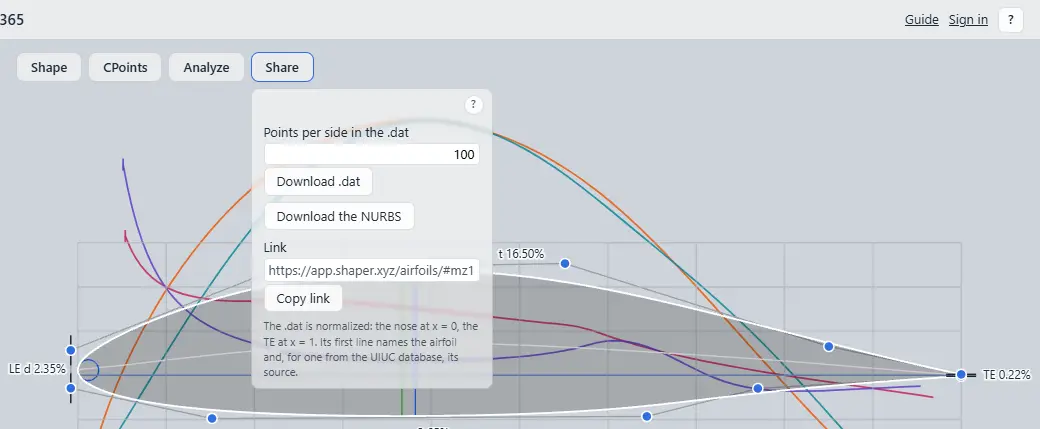
- Download .dat: the coordinates in the usual airfoil format, with the number of points per side you choose; it opens in XFOIL and most airfoil programs.
- Download the NURBS: the curve itself (degree, knots and control points) as a JSON file.
- Copy link: a link that opens a library airfoil as it is saved in the library.
8. The Library
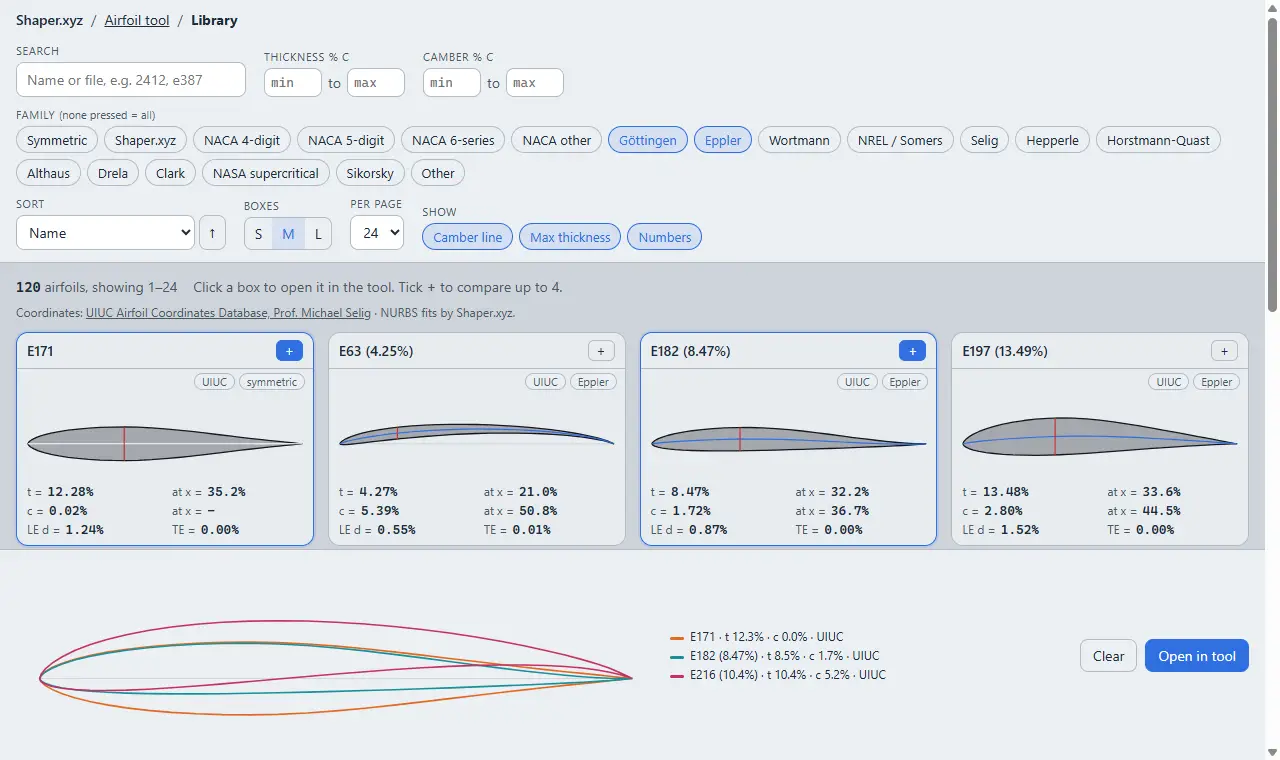
- Search by name or by the source file's name, for example 2412 or e387.
- Thickness and camber ranges in % of the chord, and families: press one or more to narrow the list (none pressed shows them all).
- Sort by name, thickness, camber, the position of max thickness or the LE diameter; the arrow beside it reverses the order.
- Boxes S, M or L, 12, 24 or 48 per page, and Show the camber line, the max-thickness line and the numbers. Your choices are remembered in this browser.
- Each box shows the section, its t (max thickness) and c (max camber) with where they are, the LE diameter and the TE thickness. A very thick airfoil is drawn smaller and says so (×0.38, for example).
- Click a box to open that airfoil in the tool. Tick + on up to four boxes to overlay them in the compare tray; Open in tool opens the first with the others to compare.
- The address follows your filters, so a copied link opens the same view.
9. Credits and licences
- From UIUC. Most library airfoils come from the UIUC Airfoil Coordinates Database of Prof. Michael Selig (m-selig.ae.illinois.edu), with his permission. Shaper.xyz fits each one with its NURBS curve. The credit shows under the canvas, on the Library page and on each UIUC box; a file that carries its own licence (CC BY 4.0, for example) shows it too.
- Designed airfoils (the MZ sections) are drawn with Shaper.xyz by Decimo Mazzocato.
- Your forks keep the credit of the airfoil they came from: a copy of a designed airfoil reads "based on" it.
- Downloads carry the credit: the .dat file's first line names the source and its licence, and the NURBS file holds them as fields.
10. Keyboard shortcuts
| 1 2 3 4 | open the control boxes: Shape, CPoints, Analyze, Share |
|---|---|
| Arrows | nudge the selected point by 0.001 of the chord (with Shift, 0.01) |
| Ctrl+↑ / ↓ | thicker / thinner, by 1% each press |
| Ctrl+← / → | drift the points along the chord |
| Ctrl+Z | undo |
| Ctrl+Shift+Z or Ctrl+Y | redo |
| Right-drag, wheel | pan, zoom |
| F | reset the zoom |
| C | curvature flow: square root, linear, off |
| Tab | clean canvas, and back |
| Esc | close the open box, or clear the selection |
| ? | the list of keys in the tool |
On a Mac, Cmd works in place of Ctrl for undo and redo.
Airfoil coordinates: UIUC Airfoil Coordinates Database, Prof. Michael Selig · NURBS fits by Shaper.xyz.